Guide / Teachers / Welcome Kit
Welcome Kit: your first lesson
Your first classroom market. Prepare a four-round first lesson. You choose the groups to fit your class and devices. Each team uses one device, plus your teacher device. Create one session per class section to keep sections separate.
1. Watch the walkthrough
Before your first class, watch the step-by-step walkthrough video (about 3 minutes).
2. Rehearse before class
Send the IT guide to your school IT team. Test both teacher and student pages on the actual school network and devices. No installation or student email account is needed.
Try the individual demo, then use a separate practice session to rehearse your classroom setup.
3. Choose groups that fit your lesson
Each team agrees on one plan and uses one main device. You make the final grouping choice. For 30 students, these are examples:
| Student teams | Students per team | Student devices |
|---|---|---|
| 6 | 5 | 6 |
| 10 | 3 | 10 |
| 15 | 2 | 15 |
| 30 | 1 | 30 |
Add your teacher device to the student-device count. These are planning options, not load guarantees; rehearse the arrangement you intend to use.
At the start, teams are assigned in joining order, in rotation across markets. Each market has five companies: up to four student teams, with AI filling the remaining seats. Compare scores only within the same market.
Three things you will use
- Private teacher link
- From your welcome email. Only for you.
- Console PIN
- Six digits you choose for each class, for recovery. Only for you.
- Student join code
- Made for each class. Share it with teams.
Create your class
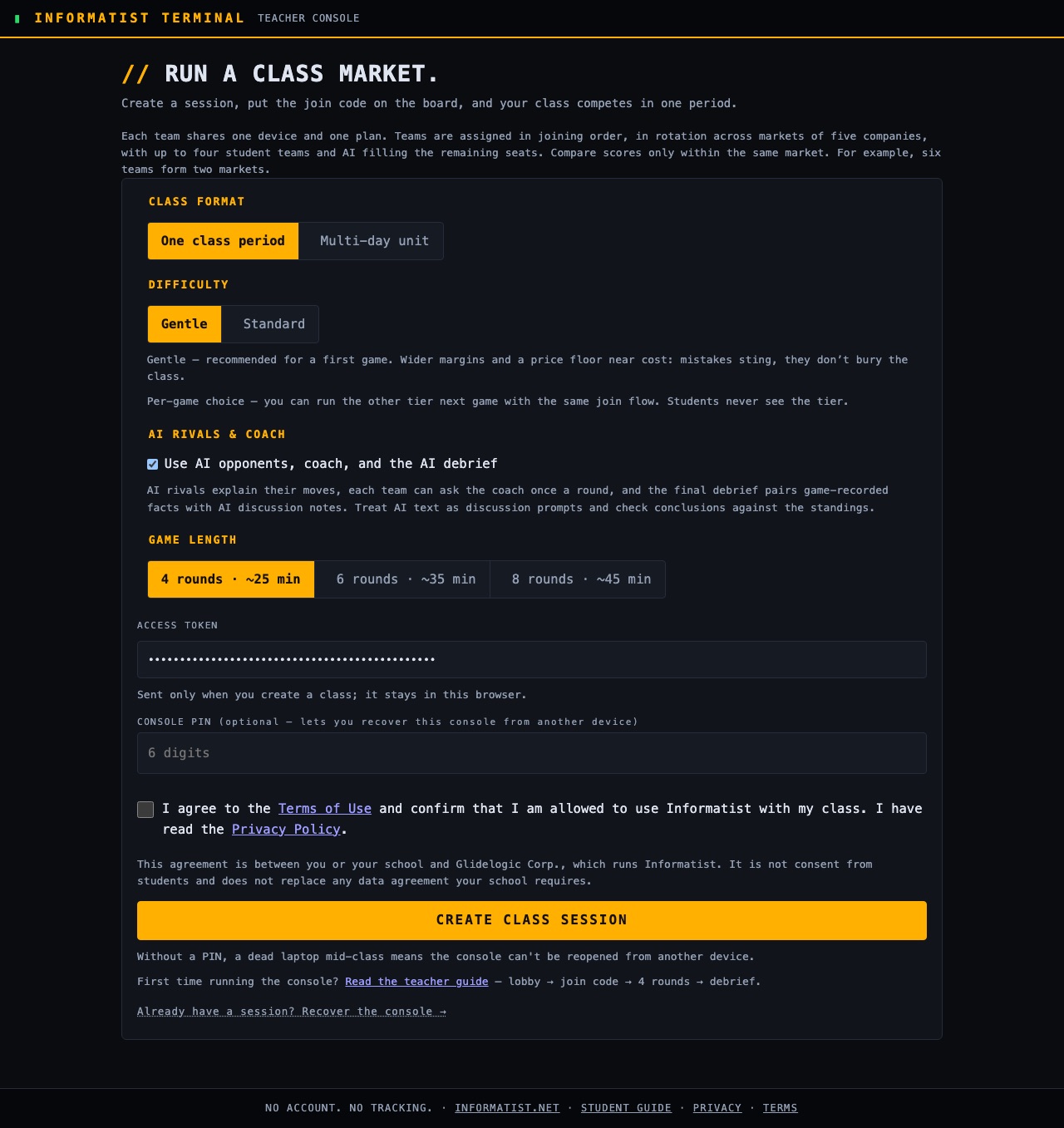
Use your private teacher link. Keep it, and the create screen, off the projector. On the create screen:
- Class settings: choose One class period, Gentle, and 4 rounds. Keep AI enabled.
- Access token: your private teacher link fills this field. Keep it private.
- Console PIN: choose and write down your own six digits. This is not the student join code.
Open your session and welcome teams
Open the private teacher link from your email to create a class and use the teacher tools. The first time, a short notice explains what Informatist keeps in your browser; tick its box and click Continue. Choose One class period, Gentle difficulty and 4 rounds. Keep AI opponents, coach and debrief enabled.
While creating that class, choose and write down your own six-digit teacher PIN in the field labelled Console PIN. It is not pre-set in the email or part of the private link.
Below the PIN, tick the box to agree to the Terms of Use, then click Create class session. The box starts unticked for every new class.
Create a separate session for each class section. After creating a class, share its join code with students. They enter it at https://www.informatist.net/class/ with a made-up team name. Students do not use your teacher PIN or private link. Check the roster, then start the game.
Run it again
The same private link runs any number of classes. On the finished class screen, click Start a new class. Earlier classes stay under My classes in that browser for 7 days after their last activity.
Run four rounds
Predict, submit, read and discuss. Then decide again.
Set the pace
Turn off Auto-close when every team has submitted if you want discussion time. Teams can update a submitted plan until you close the round. Check missing submissions before closing; the teacher guide explains autopilot.
- Agree on a plan. Teams choose Price, Production, Marketing, R&D and New capacity. Ask them to record one prediction. The live forecast is an estimate, not a promise.
- Submit and resolve. Teams click Submit plan. When you are ready, close the round in your console, or let auto-close resolve it if you kept that option enabled.
- Read every round result. Include round four. Teams compare Forecast vs. what happened when a saved forecast is available, then check profit, inventory and rivals. Ask which recorded number supports their explanation.
- Continue or finish. After rounds 1-3, click Continue to enter the next round. After round four, read its results first, then click See final results for final standings.
Discuss the evidence
Compare teams within their own market. The program supplies each team's factual summary. AI discussion notes and questions can contain mistakes; check them against the recorded results.
Ask: What changed after your decision? Which number explains it? What would you try next time? Let students rotate who operates the device, checks the numbers and reports the team's reasoning.
Recover without sharing private access
Teacher device lost: open the teacher page and choose Already have a session? Recover the console. Enter that class's join code and the six-digit teacher PIN you chose when creating it to restore its teacher controls. The private access link is not the recovery PIN. Team device lost: re-issue that team's link and give it only to that team.
After a student refresh: the previous results may appear again. Read them, then use Continue for the next round, or See final results after the last round.
Guides and help
IT setup: allow informatist.net and www.informatist.net over HTTPS port 443, with JavaScript enabled. Use the IT guide for the full request.
Need help? Reply to your welcome email or write to admin@informatist.net. Include the error text, time and timezone, and browser. Remove private links and PINs from screenshots.
Informatist is a classroom beta, free for teachers and students, with no paid tier planned. Use the online guides for current detailed instructions.